
Make It Art: 5 Best Electronic Drawing Pads for Beginners to Pros
As an Amazon Associate I earn from qualifying purchases. Some links may earn us a commission at no extra cost to you.
If you’re shopping for an “electronic drawing pad,” you’re really choosing among three types: a stand-alone tablet you can draw on anywhere, a pen display that plugs into a computer so you draw directly on the screen, or a pen tablet (no screen) that controls your cursor. What matters most are pen feel and latency, display quality (contrast/color/lamination), driver reliability, and whether the apps you need run on-device or on your Mac/PC.
How I researched
I compared late-2025 roundups and deep-dive tests, prioritized pen latency/accuracy and display contrast/color, checked platform fit (Windows/macOS/ChromeOS/iPadOS/Android), and noted warranty terms and current availability. I weighed drawing performance, display characteristics (OLED vs IPS/QLED), driver stability, and ownership details like cables, ports, and stands. This guide focuses on the product itself—performance, specs, and reliability—so you can match the right pad to the right workflow.
Top picks
Apple iPad Air (11-inch, 2024) + Apple Pencil Pro (sold separately) — Best stand-alone for most artists
A fast, portable canvas with top-tier creative apps and an excellent stylus.
Why it wins: Snappy performance, broad app ecosystem, and Pencil Pro’s squeeze/barrel-roll gestures make sketching and painting feel natural.

- WHY IPAD AIR — iPad Air is powerful, versatile, and comes in a choice of two sizes. Featuring a stunning Liquid Retina display and the amazing performance of the M2 chip, along with Touch ID, advanced cameras, superfast Wi-Fi 6E, and a USB-C connector.* Plus powerful productivity features in iPadOS and next-generation Apple Pencil Pro experience.*
- BUILT FOR APPLE INTELLIGENCE—Apple Intelligence is the personal intelligence system that helps you write, express yourself, and get things done effortlessly. With groundbreaking privacy protections, it gives you peace of mind that no one else can access your data—not even Apple.*
- 13-INCH LIQUID RETINA DISPLAY — The gorgeous Liquid Retina display features advanced technologies like P3 wide color, True Tone, and ultralow reflectivity, which make everything look stunning.*

Pros
-
Pencil Pro gestures (squeeze, barrel-roll) feel intuitive
-
Great drawing apps (Procreate, Affinity, CSP)
-
Laminated display with hover support
-
Light, all-day mobile sketchbook
Cons
-
Pencil Pro is a separate purchase
-
LCD; color pros may prefer OLED
-
iPadOS differs from desktop workflows
Social proof
See rating & reviews on Amazon.
Trade-offs / Who should skip
If you rely on desktop Photoshop plug-ins, complex color-managed pipelines, or hardware hotkeys, a plug-in pen display below will fit better.
Scores: Performance 4.8/5 · Pen feel 4.7/5 · Ease of Use 4.9/5 · Value 4.5/5
Wacom Movink 13 (OLED pen display) — Best portable pro pen display
An ultra-light 13.3″ OLED you draw on, powered by your Mac/PC.
Why it wins: Wacom’s pen accuracy with deep OLED blacks in a remarkably thin, travel-friendly body; ideal when you want pro feel away from the studio.

- IMMERSIVE CREATIVE CANVAS: 16" IPS display with 2.5K WQXGA resolution (2560 x 1600) delivers sharp, crisp, detailed visuals for digital art and design
- WACOM’S BEST PEN TECHNOLOGY: Pro Pen 3 with 8192 pressure levels responds to your lightest touch; includes tilt support, 3 shortcut keys for tool access, and a holder that mounts to either side of the display with adjustable angle for quick access
- CINEMATIC COLOR DISPLAY: 99% DCI-P3 and 100% sRGB coverage with 8-bit color depth delivers the wide color gamut used in modern displays and digital media - see your artwork as it's meant to be viewed
Pros
-
OLED contrast and true blacks
-
Very thin and light for travel
-
Works with Mac/PC/ChromeOS/Android
-
Pro Pen 3 precision & tilt
Cons
-
1080p at 13.3″; not 2.5K/4K
-
Stand often sold separately
-
Smaller canvas than 15–16″ panels
Social proof
See rating & reviews on Amazon.
Trade-offs / Who should skip
If you mostly work at a fixed desk or want more pixels on a bigger canvas, the 15–16″ QHD option below is a better fit.
Scores: Performance 4.7/5 · Display contrast 5.0/5 · Ease of Use 4.4/5 · Value 4.4/5
Huion Kamvas Pro 16 (2.5K) — Best value 15–16″ pen display
Colorful, sharp QHD canvas with strong pen tech and low parallax.
Why it wins: 2560×1440 at 15.8″ with full-lamination and anti-glare glass hits a sweet spot for detail, size, and comfort as a main desk display.
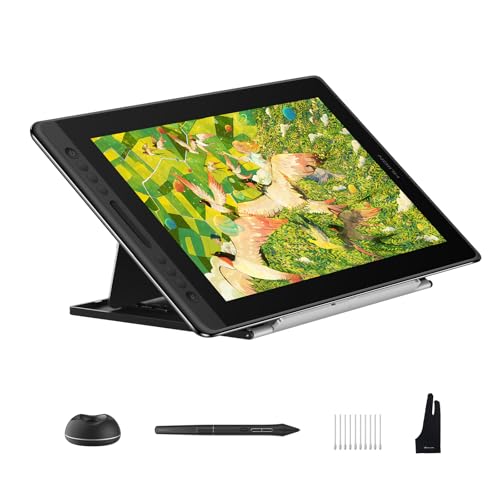
- Important Note: The Kamvas Pro 16 V2 is a pen display, not a standalone tablet (not touch screen). Requires connection to a computer or laptop.
- Pixel-Perfect Pen Precision: The battery-free PW600A with Pentech 4.0 offers 16,384 pressure levels and 5080 LPI resolution for capturing the finest details and most nuanced strokes.With three side keys and a dust-proof grip, it not only provides a real pen-like experience but also boosts effciency.
- True Paper-like & Vibrant Color: Draw naturally on the 15.6" full-laminated anti-glare digital drawing display—minimal parallax, reduced glare, and a paper-like texture. Enjoy stunning visuals with 120% sRGB color coverage (99% sRGB + 99% Rec.709) and 16.7 million colors for print-ready accuracy, even at wide 178° viewing angles.
Pros
-
QHD (2.5K) at 15.8″ looks crisp
-
Full-laminated glass reduces parallax
-
Wide-gamut QLED panel
-
Solid two-year warranty in many regions
Cons
-
No touch; pen + keys only
-
Needs USB-C DP Alt-Mode or 3-in-1 cable
-
Color pros may still want 4K
Social proof
See rating & reviews on Amazon.
Trade-offs / Who should skip
If you want OLED blacks and ultra-light travel weight, pick Movink. If you need multi-touch or 4K, step up in the lineup.
Scores: Performance 4.5/5 · Display sharpness 4.6/5 · Ease of Use 4.3/5 · Value 4.8/5
XP-Pen Magic Drawing Pad — Best Android stand-alone drawing tablet
A no-computer-needed Android 14 pad with a battery-free EMR pen.
Why it wins: Purpose-built for drawing with a 12.2″ 2160×1440 screen and a responsive EMR stylus—great when you want mobile sketching without switching to iPadOS.
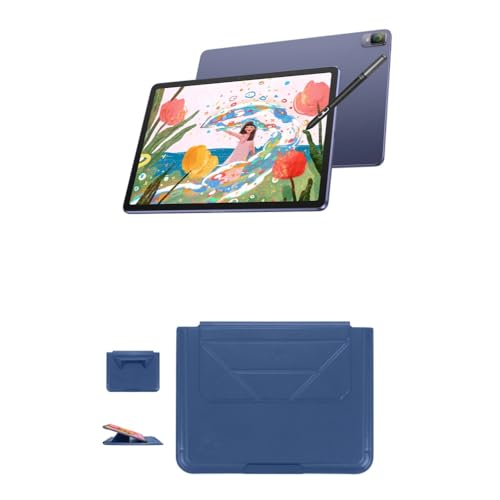
- Standalone & Fully Portable: No computer needed! The 12.2-inch Magic Drawing Pad is a lightweight, all-in-one digital drawing solution that lets you create anywhere, anytime
- 16K Pressure Sensitivity for Ultimate Precision: Experience next-level accuracy with industry-leading 16384 levels of pressure sensitivity, powered by the X3 Pro Slim Stylus for tilt function, ultra-smooth and precise strokes
- Vibrant, High-Resolution Display: Featuring a 2160×1440 resolution, 3:2 aspect ratio, and a 109% sRGB color gamut, enjoy a paper-like drawing experience with stunningly rich colors
Pros
-
Stand-alone; runs Android 14
-
EMR pen (no charging) with high pressure range
-
Matte, paper-like surface
-
Long-lasting battery for field work
Cons
-
Fewer pro apps than iPad
-
Color accuracy below top pen displays
-
Warranty terms can vary by seller
Trade-offs / Who should skip
If your workflow depends on Procreate/Affinity or full desktop Adobe, choose iPad Air or a pen display.
Scores: Performance 4.2/5 · Pen feel 4.5/5 · Ease of Use 4.4/5 · Value 4.6/5
Wacom Intuos Small (Bluetooth) — Best budget drawing tablet (no screen)
Reliable EMR pen, rock-solid drivers, and easy setup on most systems.
Why it wins: Wacom’s 4,096-level pen, compact 7″ active area, and low-latency tracking are ideal for beginners, classrooms, and tight desks—without paying for a display.
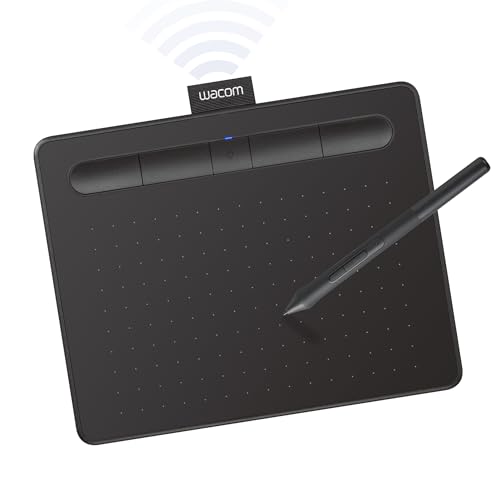
- Wacom Intuos Small Bluetooth Graphics Drawing Tablet: Enjoy industry leading tablet performance in superior control and precision with Wacom's EMR, battery free technology that feels like pen on paper
- Works With All Software: Wacom Intuos tablet can be used in any software program to explore new facets of digital creativity; draw, paint, edit photos/videos, create designs, and mark up documents
- Wireless Superior Connectivity: Connect wirelessly via Bluetooth or directly using USB-A cable which enables you to work, draw or create whether it's at a desk, on the sofa, in classroom or even outside
Pros
-
Accurate EMR pen; 4,096 pressure levels
-
Works with Mac/Windows; Chromebook support noted
-
Light, durable; easy to carry
-
Battery-free pen; no charging
Cons
-
No display; learning curve at first
-
Small active area for sweeping strokes
-
4K pressure, not 8K/16K
Scores: Performance 4.0/5 · Control accuracy 4.2/5 · Ease of Use 4.3/5 · Value 4.7/5
Quick compare
-
iPad Air (11-inch, 2024) — Best stand-alone: top apps + Pencil Pro gestures; iPadOS limits some desktop workflows.
-
Wacom Movink 13 — Best portable pro display: OLED contrast, ultra-light; FHD only at 13″.
-
Huion Kamvas Pro 16 (2.5K) — Best value desk display: QHD, full-lamination; no touch, needs proper cabling.
-
XP-Pen Magic Drawing Pad — Best Android stand-alone: EMR pen, no PC needed; thinner app ecosystem.
-
Wacom Intuos Small — Best budget/no-screen: accurate EMR, Chromebook-friendly; you draw while looking at monitor.
Buying guide
Pick your category first
-
Stand-alone (iPad Air, XP-Pen Magic): draw anywhere; choose this if you want mobile apps and zero cables. iPad wins for Procreate/Affinity; XP-Pen suits Android workflows.
-
Pen display (Movink, Kamvas Pro 16): best when you already own a capable Mac/PC and want desktop Adobe/Clip Studio with direct-on-glass drawing. OLED = best blacks/contrast; QHD at 15–16″ = roomy and sharp.
-
Pen tablet (Intuos): cheapest, durable, great for learning line control—no screen to break.
Pen feel & latency
Modern EMR pens from Wacom, Huion, and XP-Pen feel natural; laminated displays and iPad’s panel keep parallax low. Pencil Pro adds hover and new gestures that cut tool switching.
Display essentials
For color-critical work, OLED delivers the deepest blacks; QLED/QHD at 15–16″ is a crisp sweet spot. iPad Air’s LCD is accurate in P3 but not OLED.
Ports, power, and cables
Pen displays may need USB-C with DisplayPort Alt-Mode or a 3-in-1 cable (USB + HDMI). Check your laptop’s ports before buying.
Compatibility & drivers
-
Chromebook: Wacom Intuos models note “Works With Chromebook.”
-
Windows/macOS: All pen displays here support both.
-
iPadOS/Android: Stand-alone picks run their own OS/app stores.
Warranty notes
-
Apple: 1-year limited warranty; AppleCare+ optional.
-
Wacom Movink: typically 2-year limited warranty in the U.S.; some regions offer extended versions.
-
Huion: commonly two years (region-dependent).
-
XP-Pen: often 18 months via official channels; Amazon coverage can vary.
If what you really wanted was a simple LCD “writing tablet” for kids/notes (e.g., Boogie Board), those aren’t art-grade—fine for doodles and lists, not color artwork.
FAQs
Q: Pen display vs. pen tablet—what’s the real difference?
A: A pen display is a monitor you draw on (needs a computer). A pen tablet is a touch-sensitive pad (no screen) that controls your cursor. Displays feel more direct; tablets are cheaper and durable.
Q: Do I need 16K pressure levels?
A: Past ~8K, most artists can’t perceive a difference—pen accuracy, initial activation force, latency, and tilt tracking matter more than the raw number.
Q: Will these work with Chromebooks?
A: Wacom Intuos models carry Works With Chromebook language; Huion/XP-Pen have varying ChromeOS support via drivers. Check the specific model and your ChromeOS version.
Q: Is iPad Air good enough for “real” art?
A: Yes. With Pencil Pro and apps like Procreate and Affinity, iPad Air is a legit production canvas; just know iPadOS differs from desktop workflows.
As an Amazon Associate, I earn from qualifying purchases.