
Best Dual-Monitor USB Docking Stations (Extended Mode)
As an Amazon Associate I earn from qualifying purchases. Some links may earn us a commission at no extra cost to you.
If you want two extended displays from a single USB port—on Windows, macOS (including Apple silicon), or ChromeOS—DisplayLink-based docks are the most reliable route. What matters most: dual-monitor resolution/refresh support, charging wattage, OS compatibility (DisplayLink Manager on macOS), and a port layout that fits your desk.
How I researched
I compared 2025 deep dives, spec sheets, and manuals; prioritized dual-monitor resolution (1080p vs 4K@60), macOS/ChromeOS support, and stable charging. I checked driver requirements (DisplayLink Manager on macOS), host-port compatibility (USB-C vs USB-A), and warranties/availability. I weighed display performance, charging/power, port mix, and long-term reliability.
Top picks
Plugable UD-7400PD — Best for “dual today, room to grow”
One dock that crushes dual 4K now and can scale to way more if you ever need it.
Why it wins: Hybrid design drives dual extended monitors up to 4K60—with headroom to add more displays later—plus hefty 140W host charging and 2.5GbE.
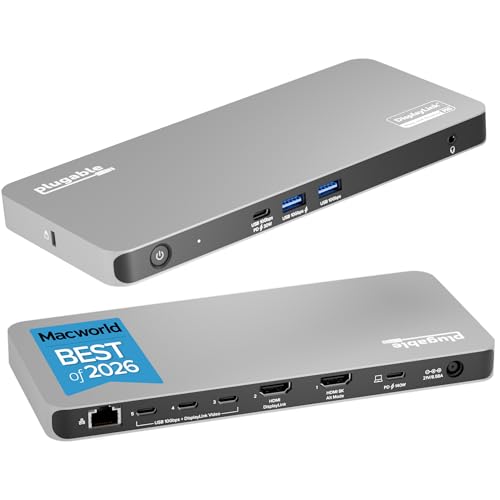
- The 5 Display Dock at a Glance: Recognized as the MacWorld Editor's Choice "Best DisplayLink Dock for 5 Displays,” the UD-7400PD Plugable docking station drives up to 5 high-res displays (3x 8K, or 1x 8K + 4x 4K), with up to 140W laptop charging + 30W device charging, 2.5Gbps Ethernet, USB and USB-C ports. It’s what multitasking would look like if multitasking multitasked
- Extend to 5x 4K Displays: The USB-C docking station offers 1x HDMI 2.1 (up to 8K 30Hz), 1x HDMI 2.0 (4K 60Hz), and 3x USB-C DisplayLink (4K 60Hz each) so you can extend to up to 5x 4K 60Hz screens or 3x at 8K 30Hz. Note: The DisplayLink software application must be installed on a Windows or Mac computer for the dock’s HDMI video outputs to function. This process is typically automatic on Windows, manual install required on macOS.
- Made for the IT Pro: The UD-7400PD comes equipped with DockTag On Screen Display (OSD) to quickly display the dock’s status, asset details, and a QR code for fast access to set up instructions and support resources
Pros
-
Handles dual 4K60 with headroom
-
140W USB-C charging to host
-
2.5GbE and 10Gbps USB ports
-
Works on Windows and macOS
Cons
-
HDCP video not supported on external screens
-
Larger footprint than “mini” docks
-
Requires DisplayLink software
Trade-offs / Who should skip
Skip if you specifically need protected-content playback on external displays; otherwise it’s the most flexible long-term pick.
Scores: Performance 5/5 · Dual-display capability 5/5 · Ease of Use 4/5 · Value 4.5/5
Kensington SD4780P (K33620NA) — Best for dual 4K60 with 100W charging
A rock-solid dual-4K60 DisplayLink dock that works with USB-C or USB-A hosts.
Why it wins: True dual 4K60 over DisplayPort/HDMI with 100W PD and a clean port layout; backed by a 3-year warranty.
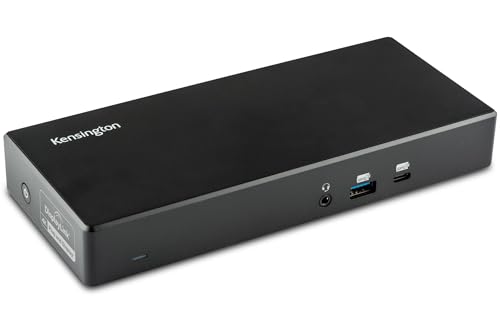
- Displaylink docking station with dual 4K display for MacBooks, Dell, HP, Lenovo, ASUS, MSI and other Windows PC’s, Surface Pro, Surface Book, Surface Laptop, and Chromebooks; works with USB-C, USB-A, and Thunderbolt 3/4 laptops (at USB-C speeds) including dual display for all MacBooks (M1, M1 Pro, M2/M3, M2/M3 Pro, M2 /M3 Max and earlier)
- Dual monitor 4k dock provides Dual or Single 4k@60Hz via DisplayLink; Four video-out ports (2 DisplayPort 1.2++ and 2 HDMI 2.0) for flexibility – connect using two HDMI, two DisplayPort, or one of each; DisplayPort connections can use a passive cable (see part# K33021WW)
- 1M USB-C cable (included) connects the dock to your device; 135W power provides up to 100W laptop charging via PD 3.0 for USB-C and Thunderbolt 3/4 devices (windows laptop must accept Power Delivery – Surface devices with USB-C ports do) plus power for peripherals; for charging USB-A laptops or USB-A Surface devices with up to 60W, use our optional power splitter part# K38310NA
Pros
-
Dual 4K60 over DP/HDMI
-
100W laptop charging
-
USB-C or USB-A host support
-
3-year warranty
Cons
-
No front USB-C for video
-
Bulky power brick
-
Couldn’t verify UL/ETL listing
Social proof
See reviews on Amazon.
Trade-offs / Who should skip
Great for desks with mixed USB-A/C laptops; creators needing Thunderbolt/USB4 bandwidth or MST daisy-chain should look elsewhere.
Scores: Performance 4.5/5 · Dual-display capability 5/5 · Ease of Use 4/5 · Value 4.5/5
Dell D6000 — Best for broad IT compatibility
The office workhorse: widely deployed, easy to manage, and works with USB-C or USB-A.
Why it wins: DisplayLink-powered outputs handle dual 4K (even triple displays in some setups), with 65W USB-C charging; standardized design keeps fleets simple. One-year limited hardware warranty.

- Enjoy Ultra HD 5K on a single screen or up to three 4K displays via USB C
- Supports up to three 4K displays or a single 5K Display
- Four USB 3.0 Ports. One USB C port. System Requirement (Recommended): PC’s equipped with USB 3.0 or USB C port, Display Link Driver installation. Power adapter 130 Watt. Power Delivery (PD) Profile Up to 65W Dell/Non-Dell laptop (5V/9V/15V@3A and 19.5V@3.25A)
Pros
-
Dual 4K extended support
-
65W host charging via USB-C
-
USB-A or USB-C host ready
-
Common in managed fleets
Cons
-
One-year warranty standard
-
2× DP + 1× HDMI layout only
-
Couldn’t verify UL/ETL listing
Social proof
See reviews on Amazon.
Trade-offs / Who should skip
Excellent for general productivity; heavy high-refresh or HDCP-sensitive streaming users may want a different model.
Scores: Performance 4/5 · Dual-display capability 4.5/5 · Ease of Use 4/5 · Value 4/5
Lenovo ThinkPad Hybrid USB-C with USB-A Dock (40AF) — Best for enterprise features
A DisplayLink “hybrid” dock with PXE/WOL/MAC-pass-through niceties and dual-UHD support.
Why it wins: Official docs confirm dual UHD 4K extended support and enterprise manageability features that play nicely in mixed fleets.

- USB Ports: 3x USB 3.1 gen2 (10Gbps, 1x always-on USB charging); 2x USB2.0; 1x USB-C port (Data,5V 3A power).
- Ports: 1x Gigabit Ethernet; 2x Display Port; 2x HDMI Port; 1x Stereo/Mic Combo Audio Port.
- Enterprise-class universal docking. Supports ThinkPad RapidCharge. Works with older Lenovo and non-Lenovo laptops.
Pros
-
Dual 4K60 extended support
-
USB-C or USB-A host ready
-
PXE, WOL, MAC pass-through
-
Broad OS support
Cons
-
90W PD typical; varies by host
-
Modest front-port selection
-
Couldn’t verify UL/ETL listing
Trade-offs / Who should skip
Ideal for ThinkPad shops or IT-managed fleets; creators who want TB/USB4 bandwidth or SD readers may prefer a different dock.
Scores: Performance 4.5/5 · Dual-display capability 5/5 · Ease of Use 4/5 · Value 4/5
Plugable UD-3900C — Best budget dual-1080p extended
A reliable, inexpensive way to add two 1080p displays—great for spreadsheets and dashboards.
Why it wins: Simple dual-HDMI extended up to 1920×1200@60, broad OS support, and Plugable’s clear docs/warranty. Note: it doesn’t charge the laptop.

- Standardize Dual-Monitor Workstations: This laptop docking station enables dual HDMI displays up to 1920x1200 from a single USB connection. Supports M1 to M5 MacBooks and MacBook Neo, and expands multi-monitor support on M1-M3 and Neo systems normally limited to one external display. A practical solution for organizations standardizing workstations across mixed device fleets. Does not charge laptops.
- Designed for Windows, macOS, and ChromeOS environments. Windows installs drivers automatically via Windows Update, macOS requires DisplayLink software installation for external displays, and ChromeOS works without additional setup. Ideal for IT-managed deployments across multiple operating systems.
- 10 Ports with USB-C or USB-A Host Connectivity: Includes two HDMI ports, two 5Gbps USB ports, four USB 2.0 ports, Gigabit Ethernet, and a 3.5mm audio jack. Both USB-C and USB-A host cables are included, allowing compatibility with newer and older laptops while the compact vertical design helps reduce desk clutter.
Pros
-
Dual 1080p extended done right
-
Works with USB-A or USB-C
-
Clear setup guides and support
-
2-year warranty
Cons
-
No host charging (use your charger)
-
Not for dual-4K setups
-
Couldn’t verify UL/ETL listing
Social proof
See reviews on Amazon.
Trade-offs / Who should skip
Perfect for office workloads; if you need dual 4K60 or lots of 10Gbps ports, step up to the options above.
Scores: Performance 3.5/5 · Dual-display capability 3/5 · Ease of Use 4.5/5 · Value 5/5
Quick compare
-
Plugable UD-7400PD — Best for expansion: dual 4K60 now; can scale to five displays; 140W charging; no HDCP playback.
-
Kensington SD4780P — Best dual 4K60 + 100W: hybrid USB-C/USB-A; 3-year warranty; sturdy but larger brick.
-
Dell D6000 — Best broad compatibility: dual 4K + 65W PD; 1-year warranty; common in offices.
-
Lenovo 40AF Hybrid — Best for enterprise: dual 4K60 + manageability; ports are pragmatic, not flashy.
-
Plugable UD-3900C — Best budget: dual 1080p, no host charging, very easy setup.
Buying guide
Extended mode on macOS & Windows
All picks use DisplayLink. On macOS (including Apple silicon), install the DisplayLink Manager app and approve its permissions for extended displays; Windows usually installs drivers automatically. ChromeOS supports DisplayLink on modern versions.
Resolution targets
-
Dual 1080p60: budget docks like UD-3900C excel.
-
Dual 4K60: choose DisplayLink DL-6950/modern hybrid docks (Kensington SD4780P, Dell D6000, Lenovo 40AF, or Plugable UD-7400PD). Check your monitors’ inputs and cables (HDMI 2.0/DP 1.2+).
Charging (Power Delivery)
If you want one-cable convenience, match the dock’s PD wattage to your laptop’s adapter: 65–100W is common; UD-7400PD goes to 140W for demanding notebooks. Budget docks like UD-3900C don’t charge—use your laptop charger.
HDCP/streaming caveat
Some DisplayLink docks don’t support HDCP playback to external screens. If Netflix/Prime DRM is critical on the external displays, verify this per model.
OS notes
-
macOS: Keep DisplayLink Manager updated; major macOS updates can require re-granting permissions.
-
ChromeOS: DisplayLink support is built-in on newer releases; performance depends on your CPU and workload.
Warranty snapshot
Typical terms: Plugable (2-year), Kensington SD4780P (3-year), Dell D6000 (1-year), Lenovo Hybrid often 3-year on many enterprise SKUs (confirm per unit).
FAQs
Q: Will these work on base M1/M2/M3 MacBooks for dual extended monitors?
A: Yes—install DisplayLink Manager for macOS and connect through any of these DisplayLink docks.
Q: Can I run high-refresh gaming monitors?
A: DisplayLink prioritizes productivity; dual 4K60 is common, but 120/144Hz support is limited and varies by resolution. For competitive gaming, prefer a direct GPU/Thunderbolt connection.
Q: Do I need USB-C, or will USB-A work?
A: Many DisplayLink docks accept either. USB-A hosts won’t get charging but can still drive dual extended displays.
Q: Any safety certifications?
A: Manufacturers rarely publish UL/ETL/CE details per SKU; for these units we couldn’t verify UL/ETL listings from official documents.
As an Amazon Associate, I earn from qualifying purchases.