
Best 1440p (2K) Monitors for Gaming, Work & Creators (Updated)
How I researched
-
I compared lab-tested measurements (motion handling, input lag, color accuracy), verified manufacturer specs (USB-C wattage, KVM, HDR, panel types), and weighed long-term owner feedback and expert reviews to balance speed, picture quality, features, and value.
Top picks
1. LG 27GS95QE-B — Best for image quality and speed (27″ OLED, 240Hz)
If you want the “it just looks insane” experience at 1440p, this 27″ OLED nails it: near-instant pixel response for blur-free motion, perfect blacks, and a true 240Hz panel with wide VRR support. Downsides: some users notice VRR flicker in dark scenes and you’ll want sensible brightness management for static UI.

- 240Hz Refresh Rate - Gear up for smooth gameplay with an ultra-fast 240Hz OLED display. The faster speed lets you respond quickly to opponents and stay a step ahead of the competition.
- 0.03ms Response Time - Enjoy smoother scenes with less lag or ghosting thanks to LG UltraGear OLED's nearly instantaneous 0.03ms (GtG) response time.
- VESA DisplayHDR True Black 400 - VESA DisplayHDR True Black 400 certified means this monitor meets industry standards for brightness as well as deep, rich black color expression. The benefit for gaming and streaming content, is impeccable image detail in dark scenes for a stunning visual experience.
Pros
-
Class-leading motion clarity with essentially no ghosting
-
Infinite contrast; gorgeous dark-room performance
-
240Hz with broad PC/console compatibility
Cons
-
Possible VRR flicker in certain dark scenes
-
SDR/HDR brightness lower than top LCDs in very bright rooms
Who should skip -
Skip if you game in sun-lit spaces all day or are extremely burn-in-averse; a fast IPS like the ASUS PG27AQN is safer.
2. Dell S2722DGM — Best budget 1440p gaming (27″ VA, 165Hz)
A long-running value champ: sharp 27″ QHD, 165Hz, great contrast for deep blacks, and smooth VRR support—all usually far under premium prices. You give up HDR punch and IPS-like viewing angles, but for the money it’s hard to beat.
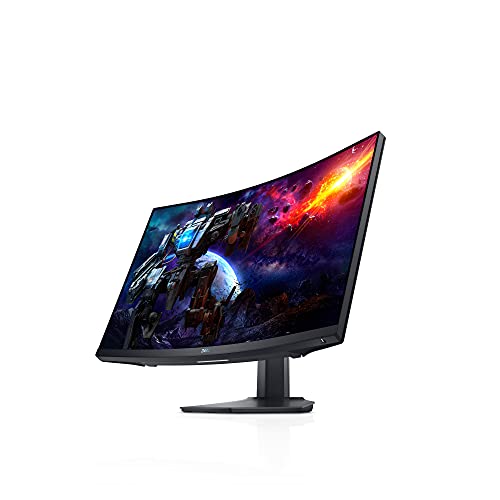
- A NEW VIEW: This 1500R curved gaming monitor provides a truly immersive experience that offers more realistic visuals and comfortable viewing.Aspect ratio:16:9.Viewing Angle:178.0 degrees.Response time:1.0 milliseconds.Specific uses for product - Gaming
Pros
-
High native contrast for cinematic blacks (VA)
-
165Hz with Adaptive-Sync for tear-free gaming
-
Frequently on sale; excellent value
Cons
-
No real HDR performance
-
Typical VA dark-level transitions can smear in some games
Who should skip -
Skip if you need wide viewing angles or color-critical work; consider an OLED or a color-focused IPS instead.
3. Gigabyte M27Q (Rev 2) — Best value for dual-device setups (27″ IPS, 170Hz, USB-C + KVM)
For folks juggling a gaming rig and a work laptop, the built-in KVM and USB-C (DP Alt Mode) are killer. At 170Hz with low input lag, it’s a smooth gamer too. Text clarity is better on Rev 2 thanks to the RGB subpixel layout; HDR is weak.
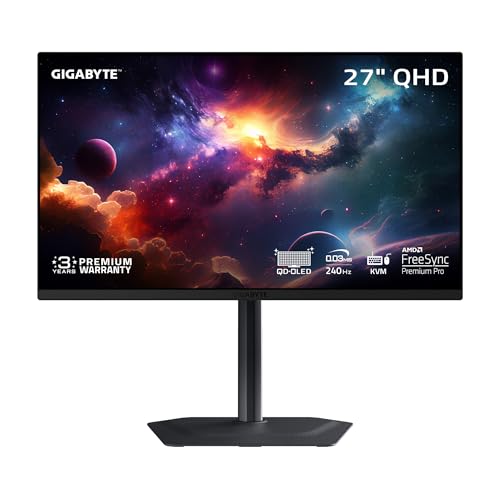
- PIXEL PERFECT IN 3RD GEN QD-OLED PANEL – The MO27Q2 features a stunning 27-inch QD-OLED display, delivering uncompromising image quality and unmatched gaming performance down to every pixel.
- EXCLUSIVE AI-BASED PROTECTION WITH GIGABYTE OLED CARE – GIGABYTE uses an AI-based algorithm to minimize the risks of burn-in issues and deploys it across a suite of OLED protecting technologies in the MO27Q2’s background with minimal interference. OLED Care includes different settings that can be adjusted as you wish, and it efficiently minimizes the risks of burn-in issues.
- COMPETITIVE EDGE WITH 240HZ REFRESH RATE AND 0.03MS RESPONSE TIME – Achieve lightning-fast responsiveness and ultra-smooth motion clarity with an ultra-high 240Hz refresh rate and 0.03ms GtG response time. Whether you’re in high speed FPS battles or intense esports competitions, the MO27Q2 ensures every frame is delivered with precision, giving you the edge when milliseconds matter.
Pros
-
Integrated KVM switch + USB-C (video/data)
-
170Hz VRR with low input lag
-
Accurate sRGB mode out of the box
Cons
-
Mediocre contrast; underwhelming HDR
-
Stand lacks some ergonomics (e.g., swivel)
Who should skip -
Skip if you want deep blacks/HDR punch; a VA budget model or OLED premium pick will suit better.
4. LG 32GP83B-B (aka 32GP850-B) — Best 32″ 1440p for roomy multitasking (IPS, 165–180Hz)
Prefer a bigger canvas? This 32″ IPS bumps text size and workspace without the GPU hit of 4K. It overclocks to ~180Hz, has excellent response times, and plays nice with both PC and console 120Hz. Blacks are IPS-typical, so keep lights on.
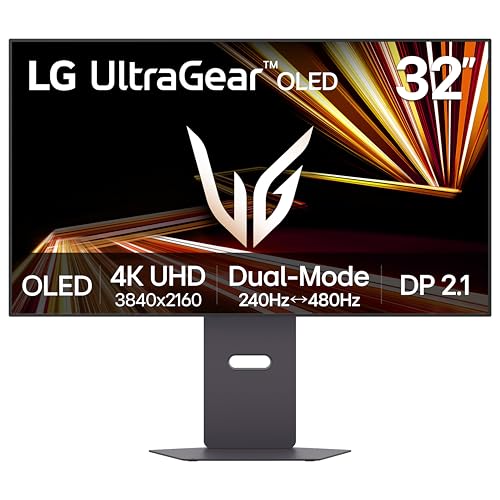
- Dual Mode: 4K UHD 240Hz or Full HD 480Hz - LG UltraGear OLED is a VESA Certified Dual Mode gaming monitor. This innovation allows gamers to experience graphically rich, story-driven games in 4K/UHD at up to 240Hz or switch to Full HD at up to 480Hz for fast-paced FPS, MOBA or racing games via hotkey.
- Leave Lag Behind with 0.03ms Response Time - Enjoy smoother scenes with less lag or ghosting thanks to LG UltraGear OLED's nearly instantaneous 0.03ms (GtG) response time.
- NVIDIA G-SYNC Compatible and AMD FreeSync Premium Pro - Officially validated by NVIDIA as G-SYNC Compatible and equipped with AMD FreeSync Premium Pro means this UltraGear provides smooth, fast action that reduces screen tearing and stutter. Never miss a frame of the action as you clinch your victories.
Pros
-
Large 32″ QHD = comfy scaling and space
-
165–180Hz with strong motion performance and low lag
-
Solid brightness and reflection handling for office use
Cons
-
Low native contrast; HDR is unimpressive
-
Stand isn’t as fully adjustable as pro models
Who should skip -
Skip if you sit very close and are picky about pixel density; a 27″ 1440p looks crisper per inch.
5. ASUS ROG Swift PG27AQN — Best for esports speed (27″ IPS, 360Hz, G-SYNC module)
If you live in Apex/Valorant and chase every millisecond, this 360Hz 1440p panel with a G-SYNC module delivers elite motion clarity and variable overdrive tuning. Picture quality is “good IPS,” not OLED-tier, and the price is premium.

- The world's first QHD 360Hz gaming monitor designed for professional esports gamers
- Adopt world's first ultra Fast IPS technology
- High dynamic range (HDR) technology with DisplayHDR 600 compliance
Pros
-
360Hz with exceptional response and tuning
-
Great peak brightness for bright rooms
-
NVIDIA module brings excellent VRR behavior
Cons
-
Lower contrast; limited HDR
-
Expensive; diminishing returns if you’re not chasing top ranks
Who should skip -
Skip if you prefer cinematic games or OLED blacks; get the LG 27GS95QE-B instead.
Buying guide
-
Size & pixel density: 27″ @ 1440p is the sharpness sweet spot at normal desk distances. 32″ is great for multitasking but looks a bit softer up close—still fine if you sit ~28–32″ away.
-
Panel tech:
-
OLED (e.g., LG 27GS95QE-B): unmatched motion + contrast; manage static elements and brightness.
-
IPS (e.g., LG 32GP83B-B, PG27AQN): best all-rounder for speed + color + angles; weaker blacks.
-
VA (e.g., Dell S2722DGM): highest contrast; may show dark-level smear in fast games.
-
-
Refresh rate & VRR: Aim for 120–170Hz minimum; competitive players benefit from 240–360Hz. Ensure FreeSync/G-SYNC compatibility for tear-free play.
-
Connectivity for laptops/consoles: USB-C with 65W PD simplifies single-cable laptop setups; built-in KVM lets one keyboard/mouse control two devices (handy for work+gaming). Console players should look for 120Hz support over HDMI (not all older 1440p monitors have HDMI 2.1).
-
Ergonomics & glare: Height/tilt/pivot, anti-glare coating, and good SDR brightness matter more for everyday comfort than midrange “HDR” claims.
FAQs
Q: 27″ or 32″ for 1440p?
A: 27″ is crisper; 32″ is roomier. If you sit close and read a lot of text, pick 27″; if you want big UI and multitasking space, 32″ works great.
Q: Do I need 240Hz or 360Hz?
A: For shooters and esports, yes—you’ll feel the input latency and motion clarity gains. For mixed single-player gaming, 144–170Hz already feels fantastic.
Q: Is OLED burn-in still a concern?
A: It’s mitigated by modern protections, but static HUDs at max brightness for long sessions can accelerate wear. Use taskbar auto-hide, vary content, and enable pixel-shift/refresh cycles.
Q: What’s a KVM and who needs it?
A: A Keyboard/Video/Mouse switch lets you share one set of peripherals between, say, a laptop and gaming PC—great on monitors with USB-C hubs.
Q: Do these support console 120Hz?
A: Many do at 1440p over HDMI; check your model’s HDMI bandwidth. (Older 1440p screens with HDMI 2.0 may cap features vs. HDMI 2.1.)
As an Amazon Associate, I earn from qualifying purchases.